Fixing Open Graph Errors: Troubleshoot & Resolve Issues Now

Have you ever shared a link on social media, only to find that it looks incomplete or unappealing? This is often due to errors in your Open Graph (OG) tags—the metadata that controls how your content appears on platforms like Facebook, LinkedIn, and X (formerly known as Twitter).
Open Graph errors can significantly impact your content's performance, leading to lower click-through rates and diminished engagement. But don't worry—most OG issues are fixable with the right approach.
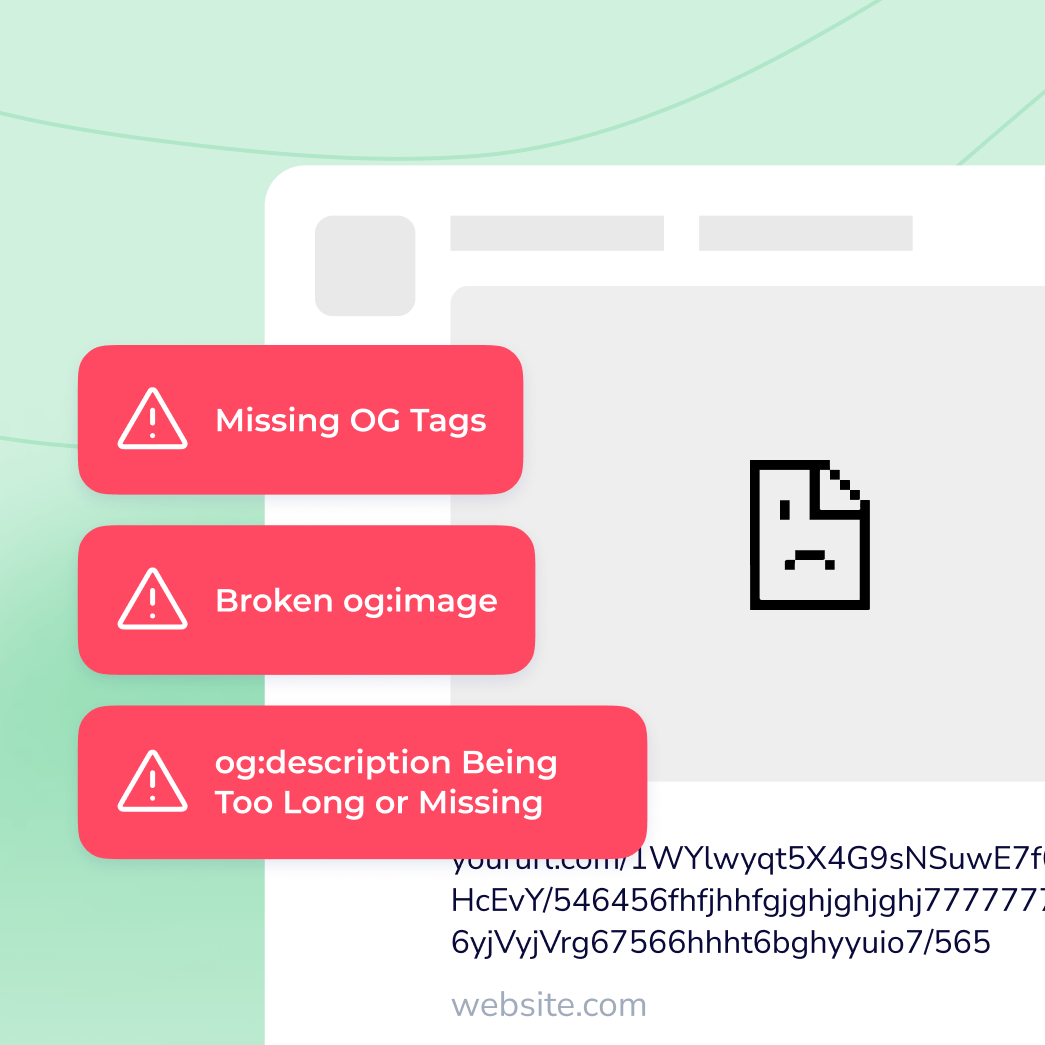
In this guide, we'll explore the most common Open Graph errors, how to identify them, and actionable solutions to ensure your links always look their best.
Top 5 OG Problems (Quick Fix Guide)
Below are the most common Open Graph issues that cause broken or inconsistent social previews. Each problem includes a fast diagnosis and its recommended fix.
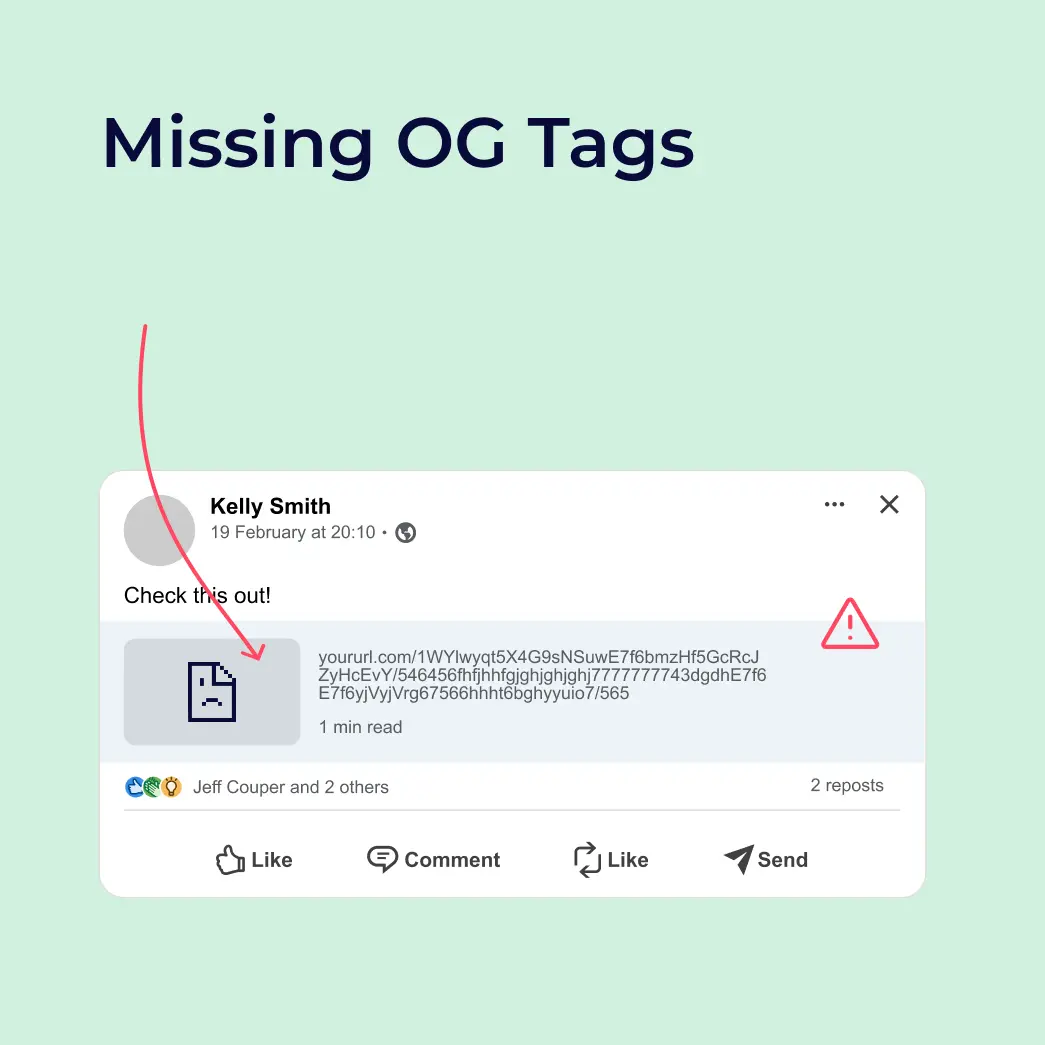
1. Missing or Undetected Image (og:image)
Symptoms: Blank thumbnail, random image chosen, or platform shows "Image could not be loaded."
Causes: Missing tag, incorrect file path, 404 image, or hotlink/cross-domain restrictions.
Fix: Ensure og:image is present, uses a fully qualified HTTPS URL, returns a 200 OK, and meets recommended dimensions.
See more: Image guidelines in Open Graph Meta Tags.
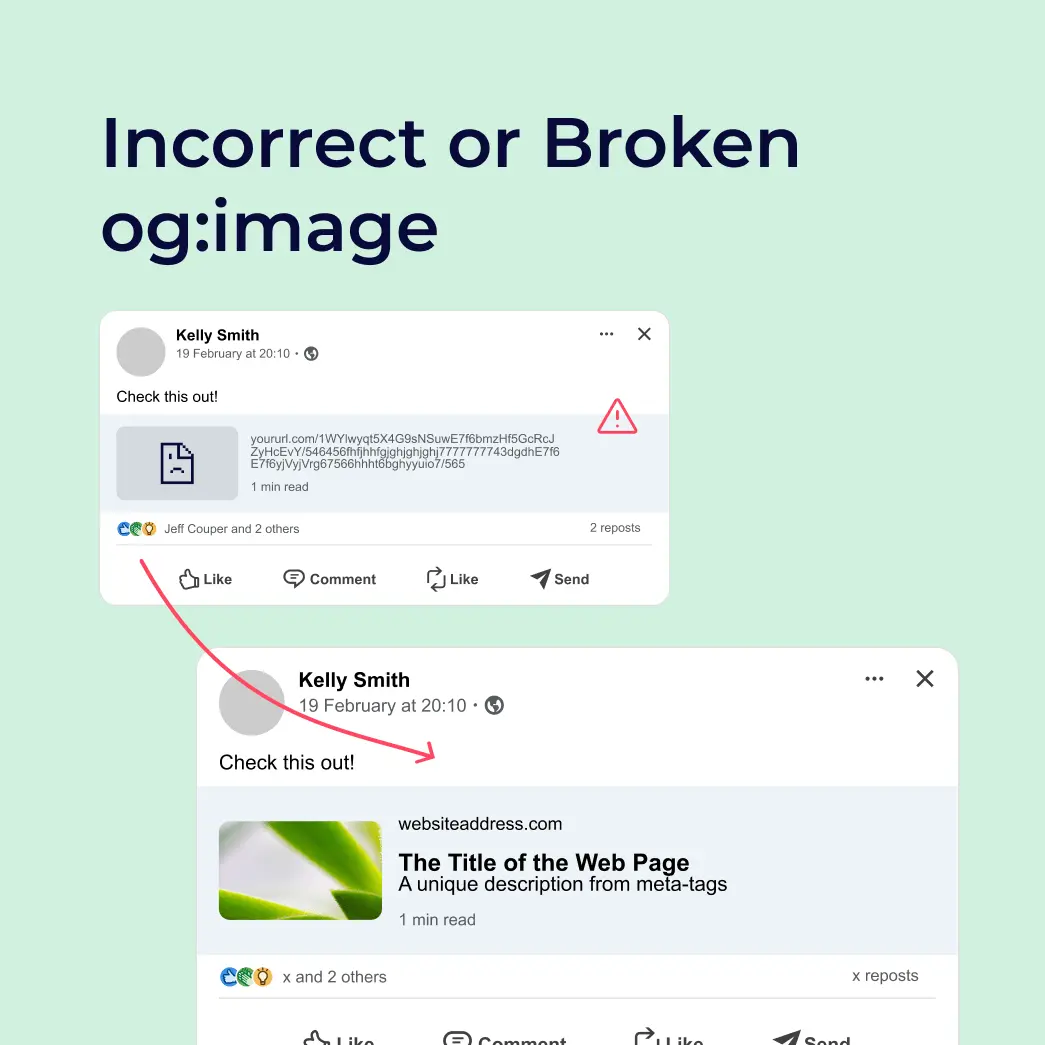
2. Incorrect or Broken og:image
Symptoms: Wrong image displays, image fails to load, or dimensions are incorrect.
Causes: Using the wrong image dimensions, slow hosting, or broken URLs can prevent your thumbnail from displaying.
Fix: Use large, clean images (1200×630 pixels) and ensure the URL returns a 200 OK without redirects or blocked access.
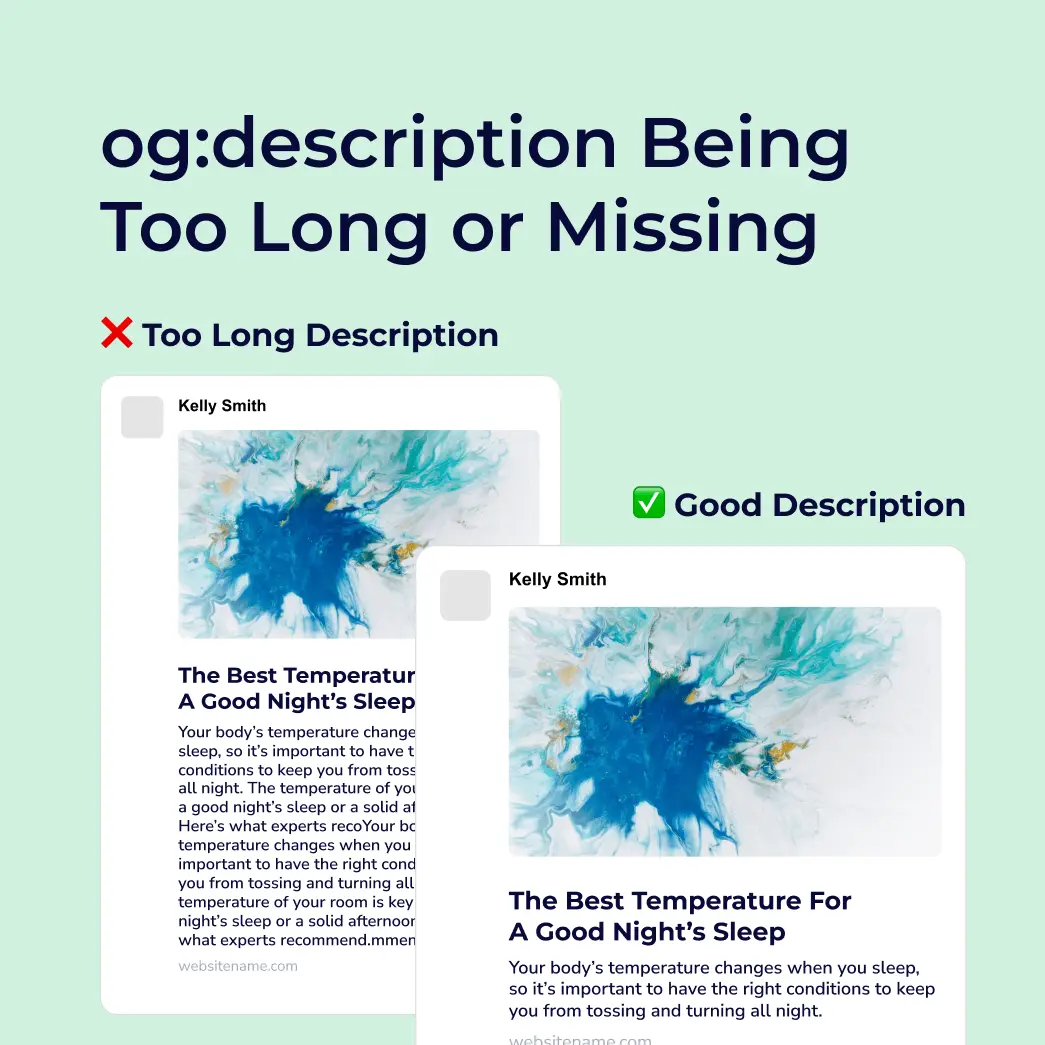
3. og:description Being Too Long or Missing
Symptoms: Lengthy descriptions may get truncated, while missing descriptions make your post look incomplete.
Causes: No description provided, or description exceeds platform limits.
Fix: Keep descriptions between 150-200 characters for optimal display across all platforms.
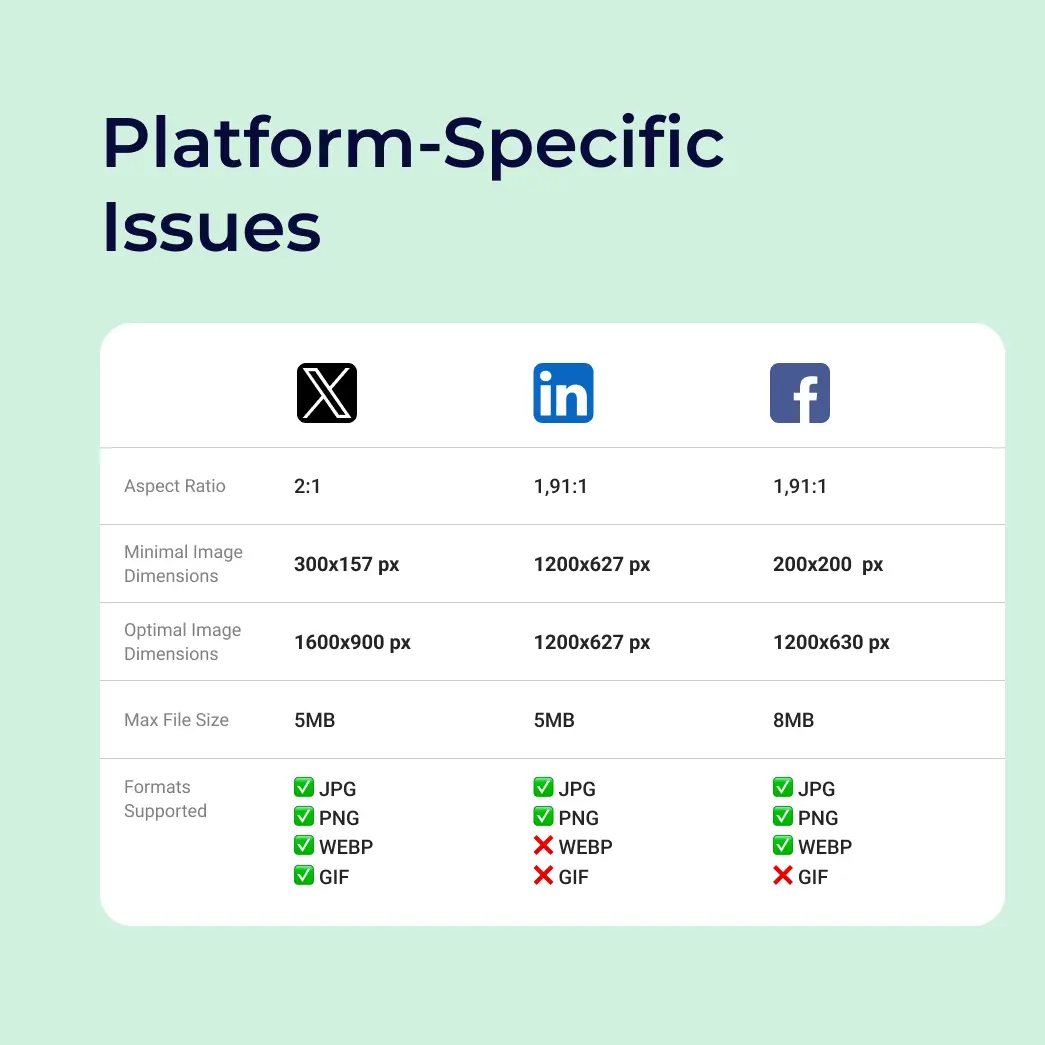
4. Platform-Specific Issues
Symptoms: Article shares look like homepage shares, missing author/date attributes, or inconsistent formatting.
Causes: Platforms like LinkedIn and X (formerly known as Twitter) may interpret OG tags differently, requiring additional customization.
Fix: Use og:type="article" for blog posts and add platform-specific tags like twitter:card for X.
Reference: Full tag definitions in Open Graph Meta Tags.
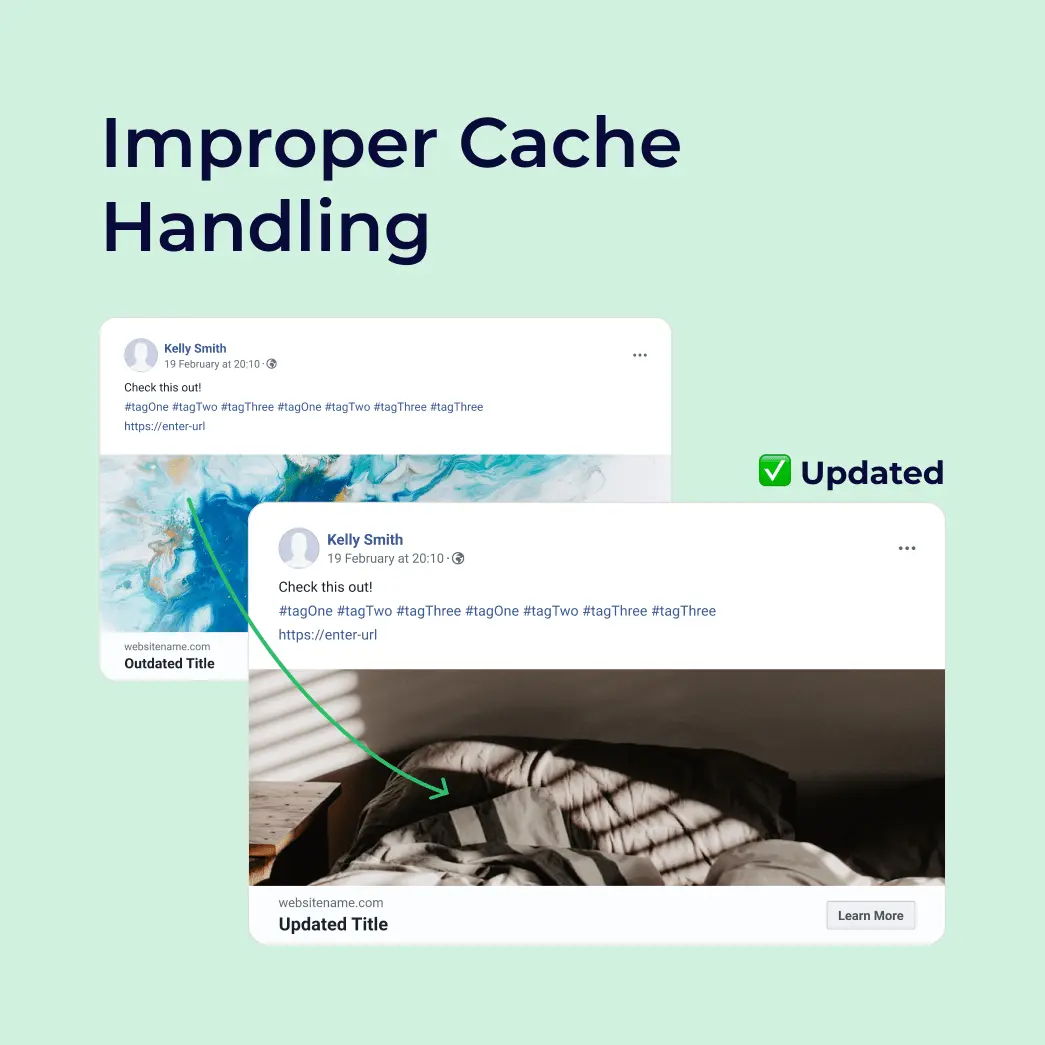
5. Improper Cache Handling
Symptoms: Preview shows old image or description despite updates.
Causes: Social platforms cache OG data. If you update your tags without refreshing the cache, outdated previews might persist.
Fix: Perform a forced re-scrape using platform debuggers (see Cache section below).
For deeper troubleshooting across all platforms, see the debugging workflow in Debug Open Graph Tags.
Fixing Cache Issues (Facebook, LinkedIn, X)
Social platforms heavily cache Open Graph metadata. Even if you fix your tags, the preview may continue showing outdated data until the cache is refreshed. Below are platform-specific steps to force a re-scrape and fetch fresh metadata.
Facebook — Clear Cached Preview (Re-Scrape)
- Go to the Facebook Sharing Debugger
- Paste your URL and click Debug.
- Scroll to the "Link Preview" section.
- Click Scrape Again to request a full refresh.
- Confirm the "Last Scraped" timestamp updates.
- If the preview does not change, click Scrape Again a second time — Facebook often requires two passes.
Facebook Notes:
- Facebook requires publicly accessible URLs (no password, VPN, or blocked crawler agents).
- Images must return
200 OKand be served over HTTPS.
LinkedIn — Refresh Metadata
- Open LinkedIn Post Inspector
- Paste your URL and click Inspect.
- LinkedIn re-fetches all OG tags automatically.
- Review the updated preview and confirm all OG fields are detected.
LinkedIn Notes:
- LinkedIn occasionally delays propagating new images for 5–10 minutes.
- Ensure titles and descriptions follow OG standards (see Open Graph Meta Tags).
X (Twitter) — Refresh Card Preview
- Visit the Twitter Card Validator (if active)
- Paste your URL and preview the updated card.
- If the preview fails to update, append a short query parameter to bypass cache:
?v=2→?v=3→ etc.
X Notes:
- X also relies on HTTPS-only images for
summary_large_image. - If the image still fails, check MIME type and header responses.
When Cache Issues Persist
If platforms refuse to update:
- Confirm your server/CDN is not serving cached HTML
- Ensure OG tags appear in
<head>only once - Run a raw HTML check to confirm the correct metadata is published
- Review the debugging workflow in Debug Open Graph Tags
For advanced cache problems (e.g., proxy cache, stale SSR output, headless browser caching), see the detailed scenarios in the sections below.
How to Identify Open Graph Errors
Before fixing OG tag issues, you need to pinpoint what's going wrong. Here are the best methods:
Use Facebook Sharing Debugger
Visit the OpenGraph Social Media Preview Checker, paste your URL, click "Check," and review any warnings or missing tags. For example, if og:image isn't displaying, check that the image URL is accessible and meets Facebook's recommended dimensions (1200×630 pixels).
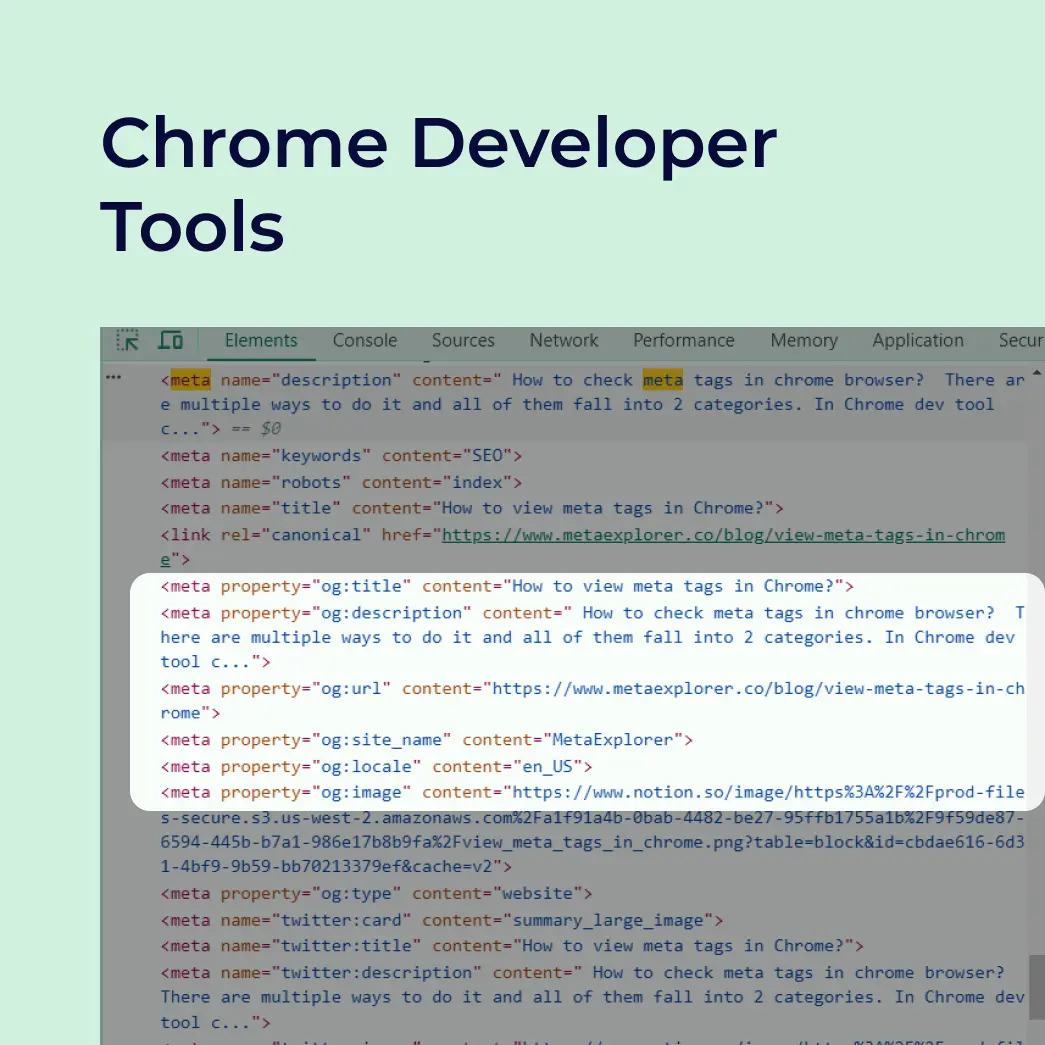
Inspect with Chrome Developer Tools
Right-click on your webpage, select Inspect, and use Ctrl+F to search for OG tags (e.g., og:title or og:image) to verify they are present and correctly formatted.
Run cURL Commands
Retrieve OG metadata via your terminal:
curl -I -X GET https://yourwebsite.com
Leverage Online OG Validators
Tools like Open Graph Check or Meta Tags Inspector provide quick insights into your page's preview across platforms.
Fixing Specific Open Graph Errors
Here's a step-by-step guide to resolving the most common OG tag issues:
Add Proper Metadata to Your HTML
Ensure your HTML includes the basic OG tags in the head section:
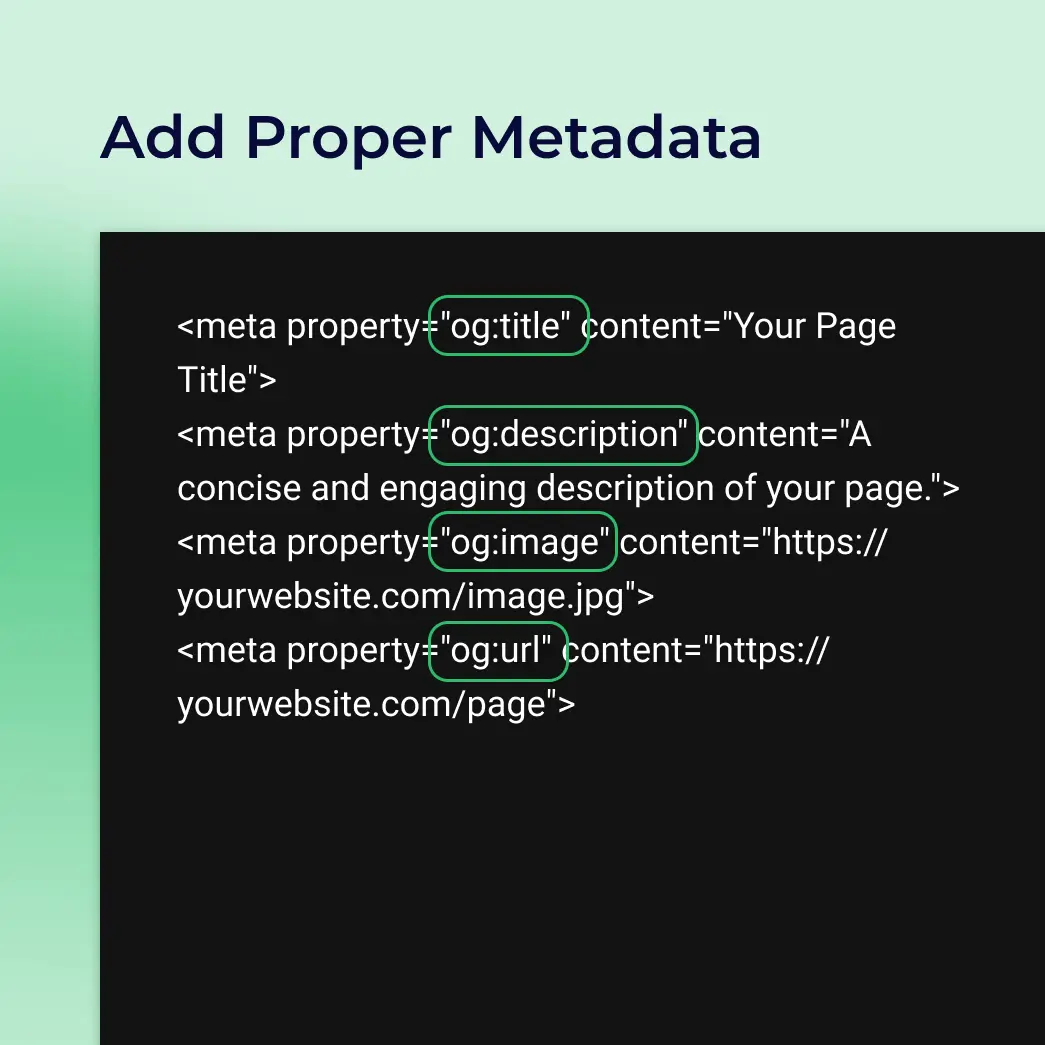
<meta property="og:title" content="Your Page Title">
<meta property="og:description" content="A concise and engaging description of your page.">
<meta property="og:image" content="https://yourwebsite.com/image.jpg">
<meta property="og:url" content="https://yourwebsite.com/page">
Pro Tip: Use a CMS like WordPress with SEO plugins (e.g., Yoast SEO) to automatically generate OG tags for each page.
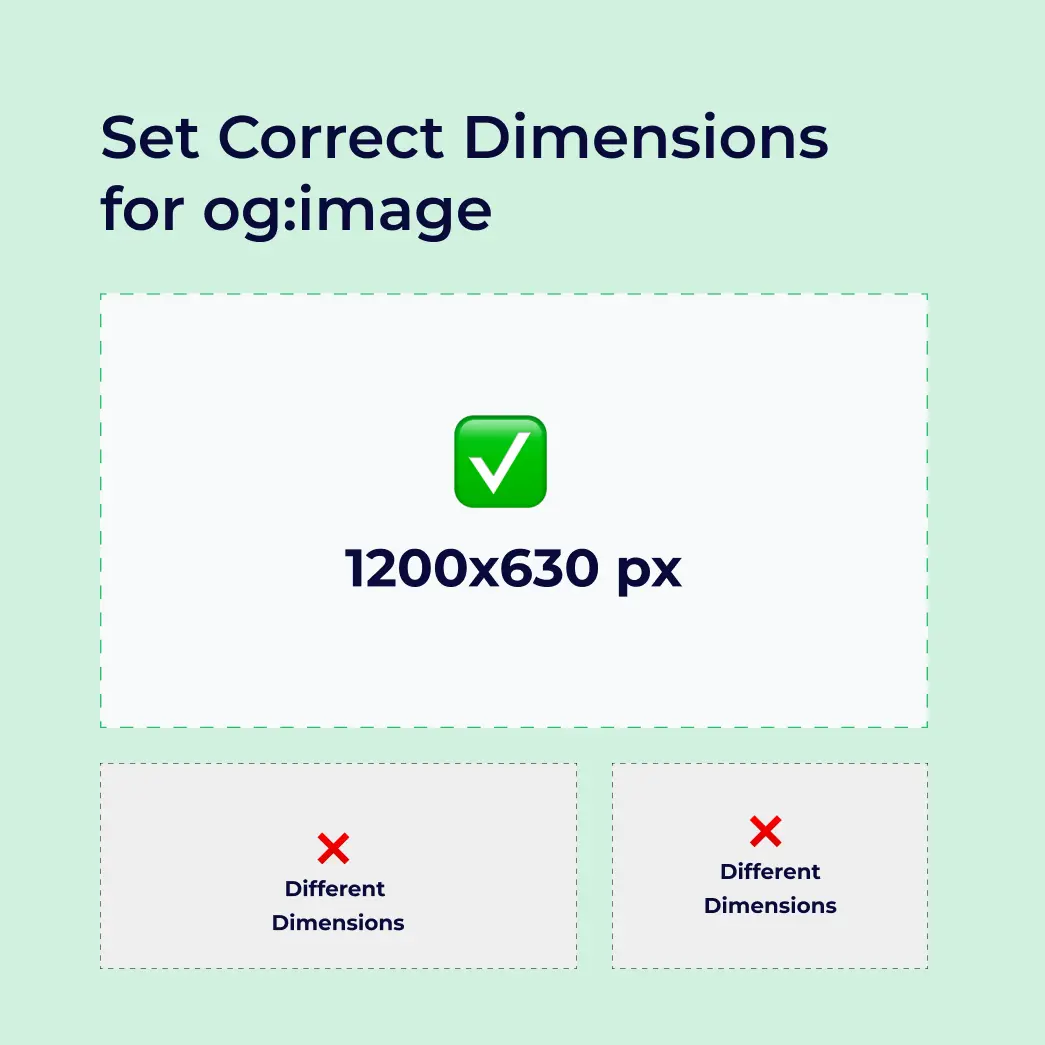
Set Correct Dimensions for og:image
The recommended size is 1200×630 pixels with a 1.91:1 aspect ratio. Host your images on a fast, reliable server to avoid loading errors. If your og:image doesn't meet Facebook's requirements, replace it with a properly sized and optimized image, and then refresh the URL using the Facebook Sharing Debugger.
Resolve Platform-Specific Issues
For X, include:
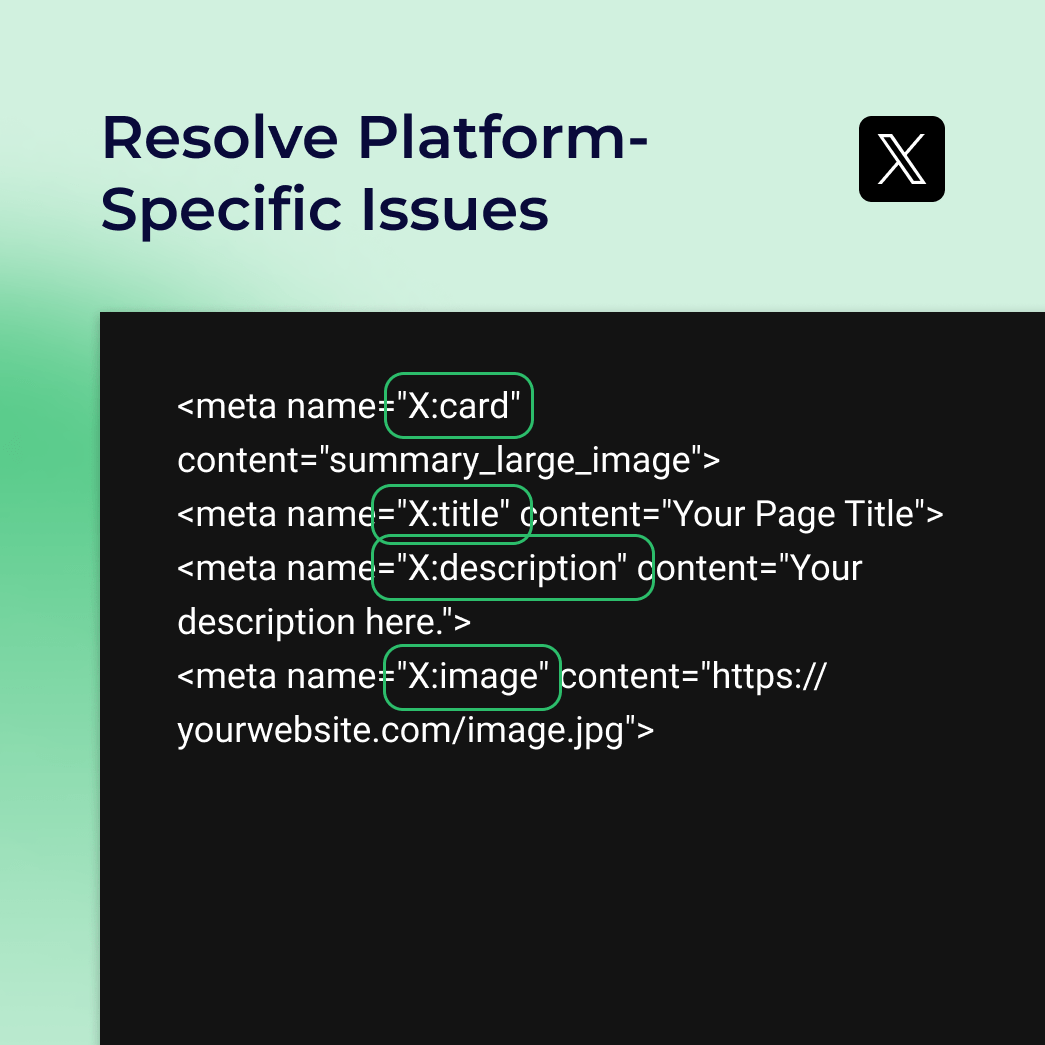
<meta name="twitter:card" content="summary_large_image">
<meta name="twitter:title" content="Your Page Title">
<meta name="twitter:description" content="Your description here.">
<meta name="twitter:image" content="https://yourwebsite.com/image.jpg">
For LinkedIn, ensure your OG tags comply with general guidelines.
Refresh Social Media Cache
Platforms like Facebook and LinkedIn cache OG data. Use their debugging tools to force a cache refresh. For X, appending a timestamp (e.g., ?v=123456) can force the preview to update.
Best Practices for Error Prevention

Prevent future OG tag issues by following these best practices:
Automate Metadata Updates
Use CMS plugins or custom scripts to generate OG tags dynamically. For example, Yoast SEO in WordPress allows you to set global defaults.
Keep Up with Platform Guidelines
Regularly review social media documentation (such as Facebook's OG guidelines) to stay current.
Validate OG Tags During Development
Incorporate tools like Puppeteer or Screaming Frog into your CI/CD pipeline to catch errors before going live.
Test Regularly
Run key URLs through tools like Facebook Debugger or Open Graph Check whenever you update content.
Case Study: Fixing Open Graph Errors Boosts Engagement
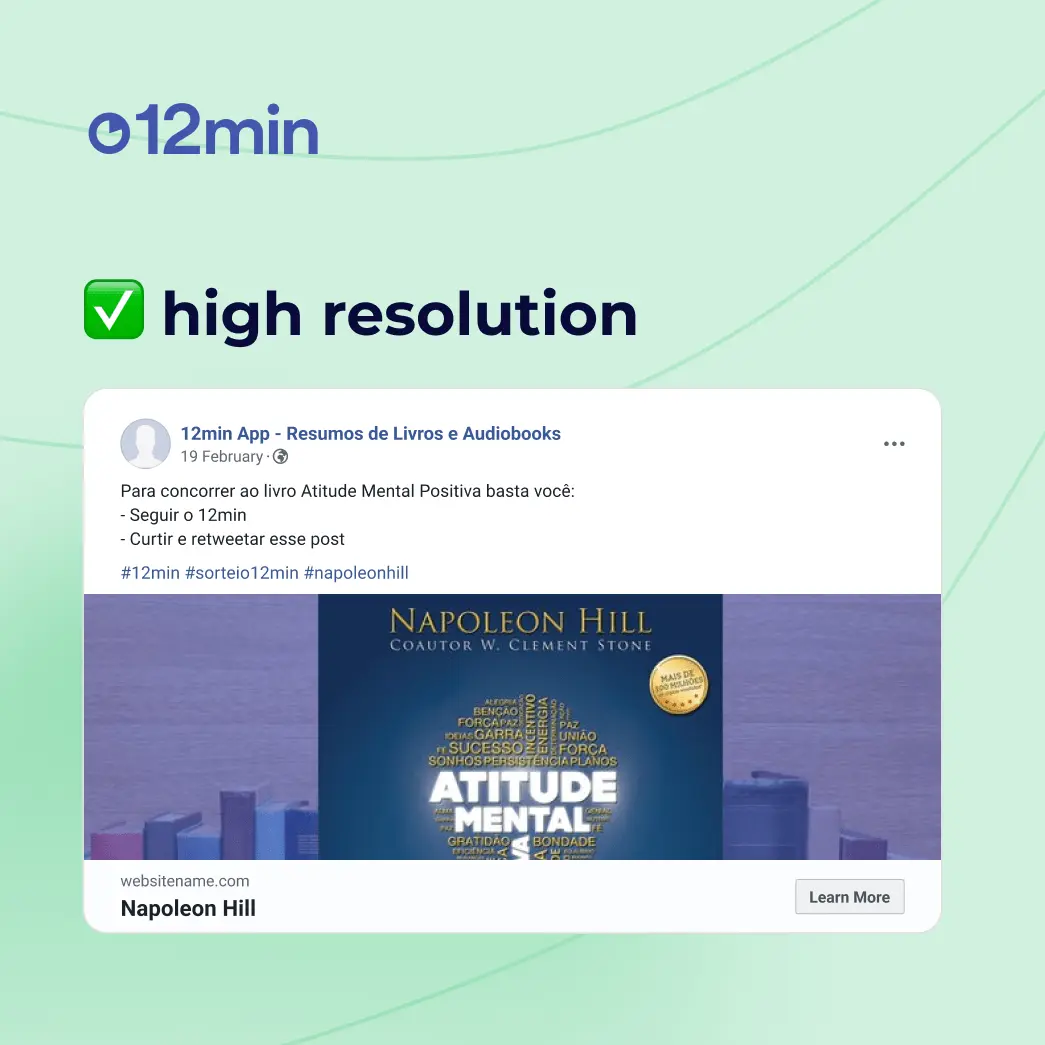
Problem: 12min, a popular microbook platform, noticed that its social media shares—especially on Facebook—were underperforming due to issues such as a low-resolution og:image and missing or vague og:description.
Solution: 12min updated its OG tags to include high-quality book cover images and concise descriptions, ensured the og:image met Facebook's 1200×630 pixels guideline, and used the Facebook Sharing Debugger to refresh cached previews.
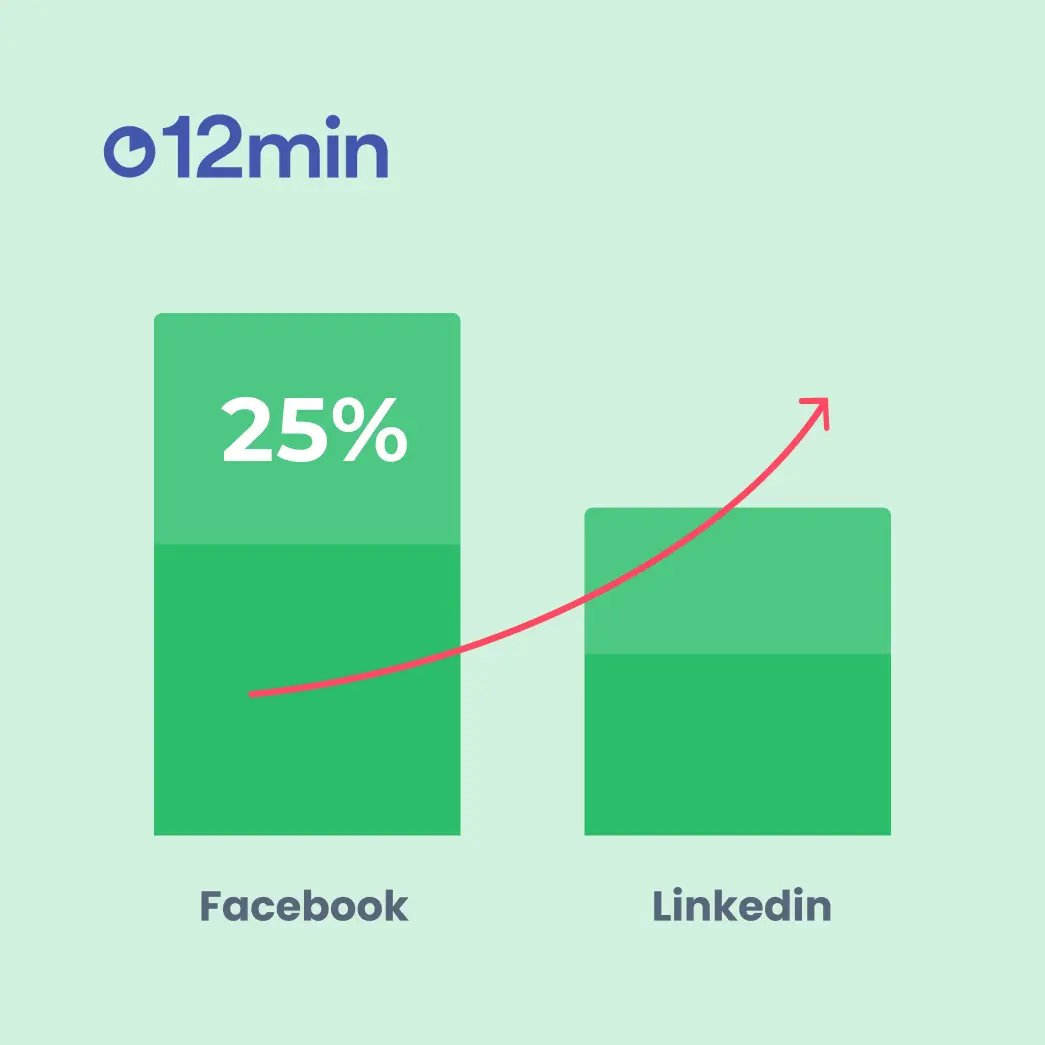
Results: These fixes led to a 25% increase in click-through rates and improved customer engagement on both Facebook and LinkedIn.
Conclusion
Properly configured Open Graph tags are key to creating visually appealing, clickable links on social media. By identifying common issues, using debugging tools like the Facebook Sharing Debugger, and following best practices, your content will always make the right first impression.
Final OG Validation Checklist
Use this quick checklist before publishing or re-sharing any page. These steps prevent over 90% of Open Graph issues.
Essential Metadata
-
og:titleis present, concise, and reflects page content -
og:descriptionprovides a clear summary -
og:imageis high-quality, HTTPS, and returns 200 -
og:urlpoints to the canonical, final URL (no redirects) -
og:typematches the content (article,website, etc.)
Structural & HTML Checks
- All OG tags appear inside
<head> - No duplicate OG properties exist
- No unclosed tags or malformed meta elements
- No staging or localhost URLs remain in OG metadata
- The page passes a raw HTML inspection and validator scan
Platform Verification
- Preview updated using Facebook Sharing Debugger
- Preview updated using LinkedIn Post Inspector
- Preview validated via X Card Validator (if available)
- OG rendering confirmed using the Open Graph Checker or your debugging workflow in Debug Open Graph Tags
Additional References
- For full OG tag definitions and best practices, see: Open Graph Meta Tags
- For understanding how OG works alongside Schema markup, see: OG Tags vs Schema
Take control of your social media previews—fix your Open Graph errors today and watch your engagement soar!