Screenshot API vs Browser Automation: Which One to Choose?

Introduction
Need to capture website screenshots programmatically?
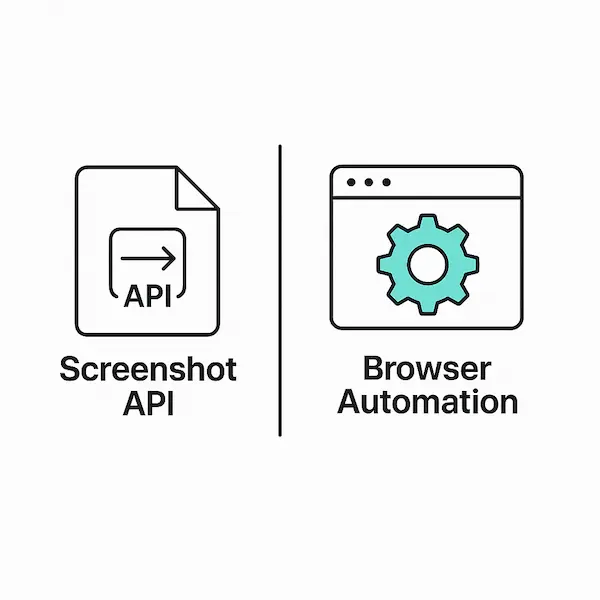
Whether you're building link preview images, automating QA, monitoring content, or archiving webpages, you'll likely choose between two options: a screenshot API or a browser automation setup using tools like Puppeteer or Playwright. Each approach has trade-offs in speed, control, scalability, and cost.
This guide compares both options so developers, startups, and product teams can make an informed decision based on use case, technical ability, and long-term needs.
Let's break it down side-by-side—with examples, benchmarks, and when to choose each.
Definitions & Quick Comparison Table
✅ What Is a Screenshot API?
A screenshot API is a hosted service that takes screenshots of web pages via simple HTTP requests. You provide a URL and optional parameters (like image size or format), and the service returns a rendered screenshot.
Example:
curl "https://opengraph.io/api/1.1/screenshot/:site?app_id=xxxxxx"
✅ What Is Browser Automation?
Browser automation uses tools like Puppeteer, Playwright, or Selenium to control a headless browser (e.g., Chrome or Firefox). You can load pages, click buttons, scroll, enter data, and capture screenshots—fully customized.
Example:
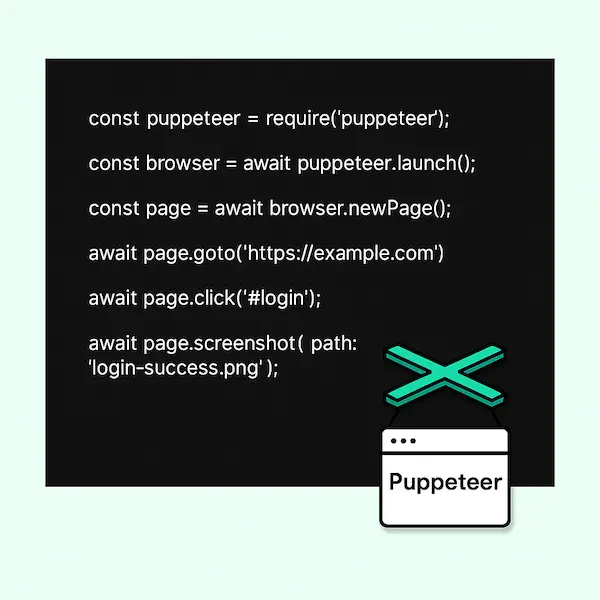
const puppeteer = require('puppeteer');
const browser = await puppeteer.launch();
const page = await browser.newPage();
await page.goto('https://example.com');
await page.screenshot({ path: 'example.png' });
📊 Screenshot API vs Browser Automation (Comparison Table)
| Feature | Screenshot API | Browser Automation |
|---|---|---|
| Setup Time | ⚡ Very fast | 🛠️ Requires setup and code |
| Scalability | ✅ Built-in | 🚧 Depends on your infrastructure |
| Customization | ⚙️ Moderate | 🔧 High |
| Cost | 💰 Predictable (based on usage) | 💸 Infra + dev time |
| Maintenance | 🔄 None (handled by provider) | 🧰 You maintain scripts & updates |
| Best For | ⚡ Fast integration | 🔍 Full browser control |
Use Cases: When to Use a Screenshot API
💡 Ideal For:
- Generating link preview images for blogs, chat platforms, or social media apps
- Building dashboards with real-time visual content
- Embedding website previews in emails or landing pages
- SEO tools displaying how pages render visually
- Startups and lean teams that need to move fast
✅ Pros
- No server infrastructure required
- Easy to test and integrate via HTTP
- Scales instantly with provider's CDN/backend
- Handles caching, compression, CDN, retries
❌ Cons
- Limited interactivity (cannot click, scroll, or perform logins)
- May have rate limits or cost per request
- Less flexibility for dynamic or authenticated content
Use Cases: When to Use Browser Automation
💡 Ideal For:
- Automated testing with page interactions (clicks, logins, forms)
- Crawling JavaScript-heavy SPAs
- Simulating user behavior for QA
- Accessing authenticated or geo-blocked content
- Custom internal tools for product or engineering teams
✅ Pros
- Full control over what happens in the browser
- Can capture after user interactions
- Works for edge cases and custom rendering logic
❌ Cons
- Requires code, runtime, and server orchestration
- Ongoing maintenance (browser versions, headless updates)
- Scaling across multiple requests can get complex
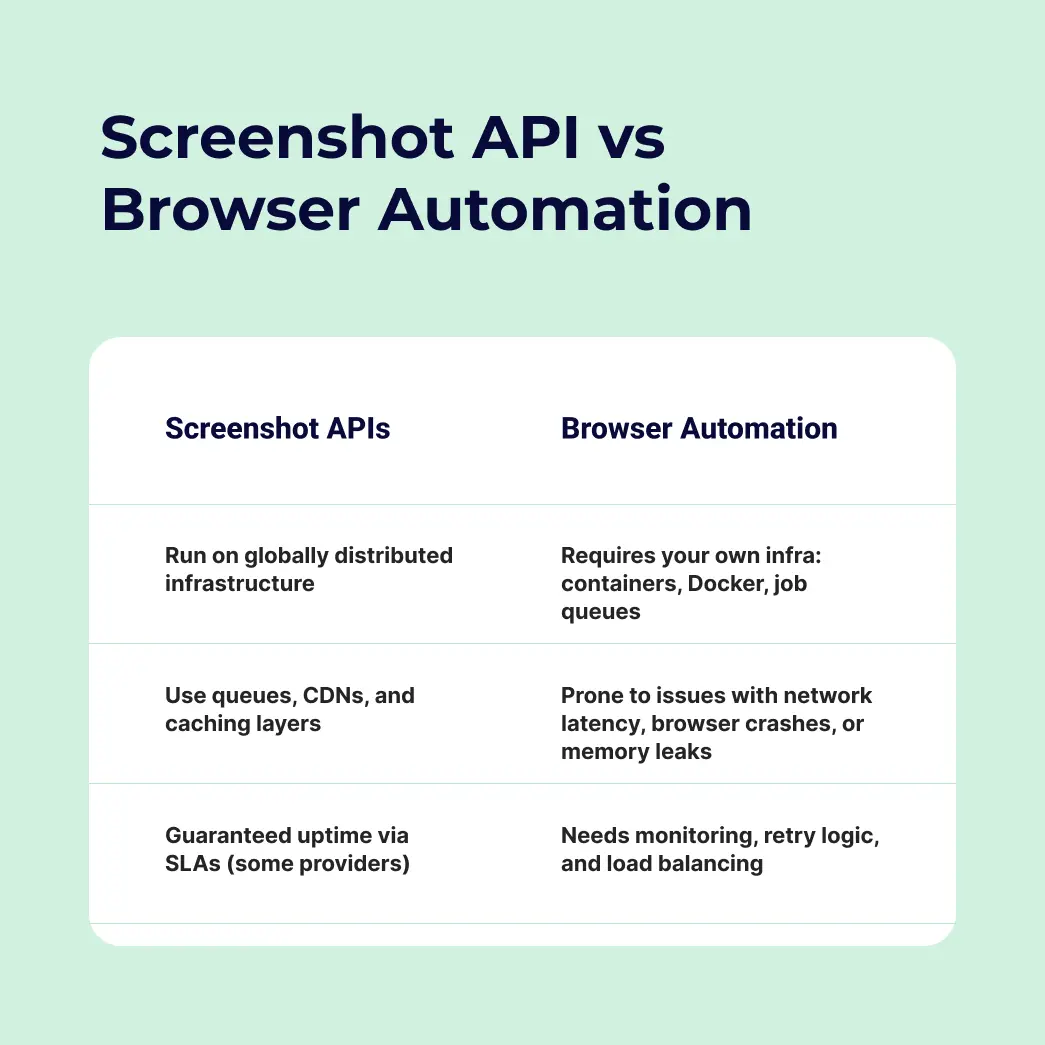
Performance, Scalability, and Reliability
📷 Screenshot APIs
- Run on globally distributed infrastructure
- Use queues, CDNs, and caching layers
- Guaranteed uptime via SLAs (with many providers)
🔁 Browser Automation
- Requires your own infra: containers, Docker, job queues
- Prone to network latency, browser crashes, or memory leaks
- Needs monitoring, retry logic, and load balancing
Cost Comparison
| Cost/Resource Factor | Screenshot API | Browser Automation |
|---|---|---|
| Initial Setup Cost | ✅ None—ready to use instantly | ❌ High—requires setup of headless browser tools, Docker |
| Developer Time | 🕒 Very low—1 API call and you're live | 🕒 High—requires coding, debugging, integration |
| Infrastructure Needs | 🚫 None—runs on provider's infra | 🧰 Yes—needs hosting (AWS EC2, GCP, containers) |
| Maintenance Over Time | 🔄 None—handled by the API provider | 🔧 Ongoing—handle browser updates, queue logic |
| Scalability Costs | 💰 Scales on provider's side (pay-per-use or subscription) | 🧱 Scaling requires more infra + orchestration tools |
| Free Tier Availability | ✅ Many providers offer limited free usage (e.g., 100–500 calls) | ❌ No—must build and run it all yourself |
| Predictability of Cost | ✅ High—transparent pricing based on usage tiers | ❌ Low—variable server, bandwidth, and labor costs |
| Cost for 10,000 Calls | 💸 ~$20–$100 (depending on size & provider) | 💸 Potentially much higher after factoring infra + labor |
| Long-Term ROI | ✅ Great for lean, fast-moving teams | ✅ Good if you need full control, though more upfront cost |
| Support / SLAs | 🛟 Included in paid plans (uptime SLA, priority support) | ❌ You maintain support in-house |
📌 Tip: Use screenshot APIs when you want predictable, scalable pricing—ideal for SaaS startups or agencies.
Real-World Examples
a. Screenshot API in Production (Image-Only Link Previews with Screenshot API)
Let's say you're building a blog platform and want to display live previews of linked websites.
API Request (cURL):
curl "https://opengraph.io/api/1.1/screenshot/https%3A%2F%2Fwww.opengraph.io%2Fbest-screenshot-api?accept_lang=auto&quality=80&dimensions=md&app_id=XXXXXXXX"
Note: A screenshot API returns only an image; to extract page title or description, use an Open Graph metadata API.
Use Case: Generate thumbnail images dynamically for every user-submitted link.
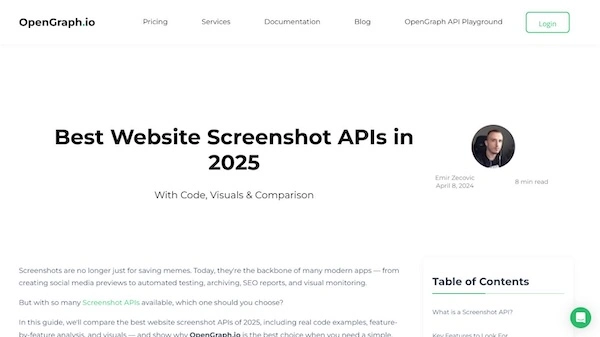
Below is the screenshot returned from an OpenGraph.io Screenshot API article:
b. Browser Automation in Production (QA Testing with Playwright)
A QA team wants to ensure every page works across browsers and capture screenshots of broken states.
const { chromium } = require('playwright');
const browser = await chromium.launch();
const page = await browser.newPage();
await page.goto('https://example.com');
await page.click('#login');
await page.screenshot({ path: 'login-success.png' });
Use Case: Automate testing workflows and capture screenshots only after specific actions.
Which One Should You Choose?
✅ Go with Screenshot API if:
- You want to launch fast
- You don't need page interactions
- You prefer low or no maintenance
- You're adding static link previews, simple embeds, or SEO visuals
✅ Go with Browser Automation if:
- You need fine-grained control over the page (e.g., logins, JS events)
- You're building custom tests or workflows
- You don't mind managing infrastructure and maintenance
💡 Pro Tip: Many teams start with a screenshot API and migrate to browser automation once needs become more advanced.
Conclusion
Both screenshot APIs and browser automation tools can capture website screenshots—but the best option depends on your goals.
If you're building quickly and need clean preview images or snapshots, an API is fast, reliable, and maintenance-free. For advanced use cases like testing, crawling, or UI automation, browser automation gives you ultimate control—but at a higher cost.
🔧 Final Tips
- Try a free screenshot API like OpenGraph.io's Screenshot Tool — no code or signup required
- Use Puppeteer or Playwright if you need custom interactions
- Start lean with an API, and migrate to browser automation when advanced features are required