
URL to Markdown for RAG: How to Chunk Web Pages for Embeddings

Converting a URL to Markdown is the first step in getting a web page ready for a RAG pipeline. A page can contain the answer you need alongside menus, ads, scripts, and links that appear on every page of the site. If you split the raw page and embed everything, some of the chunks your search returns will match a question because of a menu label or footer link.
You can have the same problem with clean content if you split it in the wrong place. Say someone asks how many chunks the Markdown API returns by default. The answer is a number, but the passage needs enough context to tell you whether that number refers to chunks, characters, or something else.
We’ll use that question throughout this guide. We’ll convert the docs page to Markdown, split it into chunks, create embeddings, and see what we need to store so a retrieved passage can point back to its source.
Convert a URL to Markdown
Send the page URL to the Markdown API as an encoded path parameter. The default response is plain Markdown, so you can inspect the page before deciding how to split it. The request needs an app ID, which comes with a free API key.
const pageUrl = "https://www.opengraph.io/docs/api/markdown";

function markdownRequest(url, options = {}) {
  const encodedUrl = encodeURIComponent(url);
  const request = new URL(
    `https://opengraph.io/api/3.0/markdown/${encodedUrl}`
  );

  request.search = new URLSearchParams({
    app_id: process.env.OPENGRAPH_APP_ID,
    ...options,
  }).toString();

  return request;
}

const response = await fetch(markdownRequest(pageUrl));
if (!response.ok) {
  throw new Error(`Markdown request failed with status ${response.status}`);
}

const markdown = await response.text();
console.log(markdown);
For a quick webpage to Markdown conversion, paste the same URL into the free converter. If you’re adding website to Markdown conversion to an ingestion job, start with the Markdown API.
The main thing to check here is whether the output contains the content and headings you expected. For more on what gets removed and what the conversion preserves, see HTML to Markdown for LLMs.
Why chunking matters for retrieval
When you embed a page as one record, every question about that page competes for the same representation. The Markdown API docs cover chunk limits, rendering, response formats, and other settings. A search for the default chunk limit may find the right page, but it still has to pass that whole page along to get the relevant sentence.
Splitting the page gives retrieval smaller passages to choose from. The catch is that a passage still needs to make sense by itself. A chunk that starts with “The default is 500” gives you the number but loses the thing being counted. Keep the parameter name, its meaning, and the value together, and the passage can actually answer the question.
How big should a chunk be?
Start with the smallest passage that can answer a question on its own. On a reference page that could be a heading and a few rows from a parameter table. On a tutorial it might be a full step, including the code example and the paragraph that explains when to use it.
The Markdown API’s chunk_size targets 200 to 20,000 characters and defaults to 2,000 characters. For a rough estimate, four characters per token puts the default at about 500 tokens. The actual count depends on the text and tokenizer, so use your embedding model’s tokenizer if you need to enforce its input limit. See the Markdown API docs.
I’d start with the default and run a few questions where you already know the answer. Open the first few results and read them by themselves. If they contain the answer but keep losing the conditions that apply to it, give the chunks more room. If every result covers several loosely related topics, try smaller chunks or split at a more specific heading.
How much overlap should you use?
Overlap repeats the end of one chunk at the beginning of the next. It helps when a size limit cuts through a sentence or separates an instruction from the condition that goes with it.
Imagine a split lands after “If the page produces more chunks than the limit allows.” Without overlap, the next chunk begins with “the API marks the response as truncated.” If enough of the previous text carries over, the second chunk can explain both what happened and why.
I’d start with zero overlap when splitting at headings. Add a small amount if your test queries turn up missing context near boundaries. Repeated text takes more work to embed and can fill your results with nearly identical passages. The API defaults chunk_overlap to zero and allows up to half of chunk_size, in characters.
Split at headings before splitting by length
A heading gives you a good place to start a new chunk because it usually marks a change in topic. Here’s a simplified version of the docs page:
# Markdown API

## Splitting the page for embedding

Use max_chunks to limit how many chunks the API returns.
The default is 500.

## Finding the part that answers a question

Send a query to rank passages from the current page.
A fixed length split could put the first sentence under one heading and the default value in the next chunk. Splitting at the H2 first gives the chunk limit and passage matching their own sections.
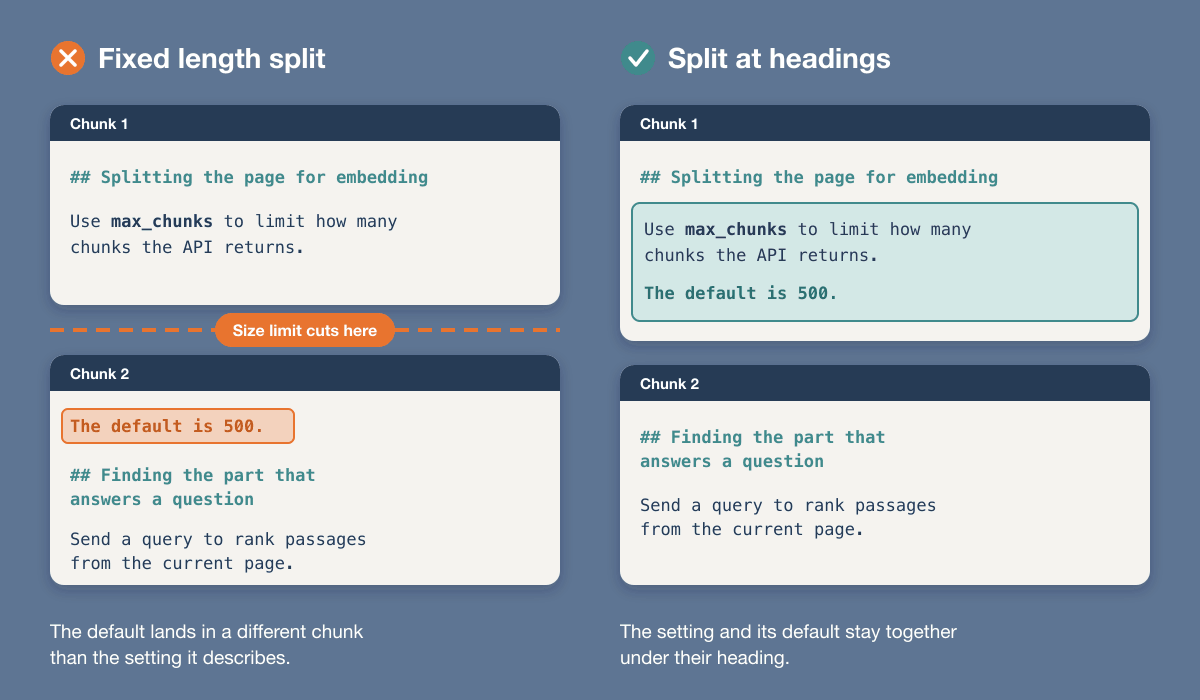
Then apply the size target within each section. If a section is too long, look for a paragraph boundary before cutting through a sentence. Keep a list, table, or code example together when it fits. If a table needs to span several chunks, carry the column names with each group of rows so the values are still readable on their own.
With API chunking enabled, heading_aware defaults to true, and heading_aware_level defaults to 2, so H2 headings mark new sections. If a docs page puts each task under its own H3, try heading_aware_level=3 and compare what comes back.
Keep the source with every chunk
When a chunk comes back from search, you should be able to show the reader where it came from. Store the source URL, page title, and heading path with the chunk text. The chunk index gives you its position in the document, which helps if you need to look at what came before or after it.
With JSON output and chunking enabled, the same API response includes both chunks and page metadata. The page details are in metadata.title, metadata.canonical_url, and metadata.final_url. Each chunk has its own heading_path and index. Your application copies the page fields it needs onto each record before storing it.
A record for our example could look like this:
{
  "text": "Use max_chunks to limit how many chunks the API returns. The default is 500.",
  "source_url": "https://www.opengraph.io/docs/api/markdown",
  "title": "Markdown API",
  "heading_path": ["Markdown API", "Splitting the page for embedding"],
  "chunk_index": 3
}
Use the canonical URL when the page provides one, with the final URL as a fallback. The final URL tells you where the request ended up after redirects.
What if the page needs JavaScript to render?
Sometimes the request succeeds but the Markdown contains little more than a heading or loading message. The browser shows the rest of the page after JavaScript runs. Before changing how you chunk the page, check that you’re getting the content you expect.
auto_renderis on by default in API v3. It detects an empty app shell and tries again with browser rendering. That automatic render has no separate render charge.full_render=trueforces a browser render. It adds about 5 to 10 seconds and incurs a render charge.wait_for_selectorwaits for a specific CSS selector to appear. Use it when you know which element signals that the content is ready.scroll_to_bottom=truescrolls the page to trigger content that loads as you scroll.
Both wait_for_selector and scroll_to_bottom enable rendering on their own. For example, if the browser shows an article once its main content container appears, you can pass that container’s selector directly. See the rendering options in the Markdown API docs.
Should the API chunk the page or should you?
If your workflow starts with public URLs and you want chunks that carry their heading paths, add format=json&chunking=true to the request. You get the Markdown, chunks, and page metadata in one response.
Chunk in your application if you need the same splitting rules across web pages, PDFs, and other sources. That also gives you control over rules specific to your content, like repeating a table header or grouping a code sample with the paragraph that explains it.
There’s a separate option for finding relevant passages when you already know the question and the page. The Markdown API accepts a query and ranks passages from that page by keyword relevance. For example, you can send max_chunks default to find the limit in the docs. For a RAG index, ingest the page with chunking enabled and leave query off so you can search across all the indexed pages later. For more on passage matching, see The OpenGraph.io Markdown API Now Goes Beyond Markdown.
From URL to Markdown to embeddings
Now let’s index the docs page. This example reuses markdownRequest from the first section. embed is your embedding provider’s function for turning text into a vector, and vectorStore stands in for your database client.
async function indexPage(pageUrl, embed, vectorStore) {
  const response = await fetch(markdownRequest(pageUrl, {
    format: "json",
    chunking: "true",
    chunk_size: "2000",
    chunk_overlap: "0",
  }));

  if (!response.ok) {
    throw new Error(`Markdown request failed with status ${response.status}`);
  }

  const { chunks, metadata, usage } = await response.json();

  if (usage?.chunk_error || !Array.isArray(chunks)) {
    throw new Error("The response did not contain usable chunks");
  }

  if (usage?.truncated || usage?.chunks_truncated) {
    throw new Error("The response did not include the full page or all chunks");
  }

  const sourceUrl =
    metadata?.canonical_url || metadata?.final_url || pageUrl;
  const records = [];

  for (const chunk of chunks) {
    const headingPath = chunk.heading_path ?? [];
    const embeddingText = [...headingPath, chunk.text].join("\n");

    records.push({
      id: JSON.stringify([sourceUrl, chunk.index]),
      vector: await embed(embeddingText),
      metadata: {
        text: chunk.text,
        source_url: sourceUrl,
        title: metadata?.title ?? null,
        heading_path: headingPath,
        chunk_index: chunk.index,
      },
    });
  }

  await vectorStore.upsert(records);
}

await indexPage(pageUrl, embed, vectorStore);

const question = "How many chunks does the Markdown API return by default?";
const questionVector = await embed(question);
const matches = await vectorStore.search(questionVector, { limit: 3 });

console.log(matches.map(match => match.metadata));
max_chunks defaults to 500. When a page produces more chunks than that limit, usage.chunks_truncated is true and usage.chunk_count reports how many chunks the page produced. Check those fields before indexing. You can raise max_chunks up to 2,000 or fetch the full Markdown and split it in your application if you still need more.
Use the same embedding model for the question and the indexed passages. For this example, look for a result that contains the max_chunks setting and its default of 500. Then check the metadata. You should have enough information to cite the Markdown API docs and identify the section that contains the answer. If the right page comes back but the relevant passage is missing, look at where the section was split before changing the embedding model.
FAQ
What chunk size should I start with for a web page?
Start with 2,000 characters, roughly 500 tokens, and check the first few results for questions you expect readers to ask. Narrow reference sections may work better as smaller chunks. A tutorial that needs an explanation and a code sample together may need more room.
Do chunks need overlap?
Start with zero when headings give you clean boundaries. Add overlap when test results show that a chunk regularly loses a sentence or condition needed to answer the question.
Should I split Markdown by headings or by length?
Use both. Split at headings first, then apply a size target inside longer sections. This gives you passages that stay on one topic and still fit your embedding model’s input limit.
Can I get chunks and page metadata in one request?
Yes. Send format=json&chunking=true. The response includes the chunk array and page metadata with metadata.title, metadata.canonical_url, and metadata.final_url. Copy the page fields you need onto each chunk when you store it.
Does question matching replace a vector database?
Use question matching when you already have a URL and want to find passages on that page by keyword. Use your vector index when you need to search by meaning across pages you’ve already ingested.
What should I do if a page needs JavaScript to render?
Start with the API’s default auto_render behavior and inspect the Markdown. If the content is still missing and you know which element contains it, try wait_for_selector. If the site loads more content as you scroll, use scroll_to_bottom=true. Use full_render=true when you need to force a browser render.