
How to Take a Full Page Screenshot (Chrome, Firefox, Extensions, and APIs)

Capturing an entire webpage — not just the visible viewport — is essential for marketers, developers, QA testers, content creators, and anyone who needs visual documentation. Whether you're creating a bug report, an audit, or a visual archive, a full-page screenshot is the fastest way to get the job done.
But depending on your use case, there's more than one way to capture a full web page.
In this guide, we'll walk through manual, no-code, and automated options to take full-page screenshots — and explain when to use each one. We'll end with a scalable method that developers and SaaS teams love: screenshot APIs.
Best Full Page Screenshot Methods by Use Case
| Use Case | Best Method | Why |
|---|---|---|
| One-off screenshots | Chrome DevTools | No setup, built-in |
| Non-technical users | GoFullPage extension | One-click, browser-native |
| QA & automation | Puppeteer / Playwright | Full JS control |
| Scalable | Screenshot API (OpenGraph.io) | Fast, easy to set up |
1. Built-In Methods (Chrome, Firefox, Safari)
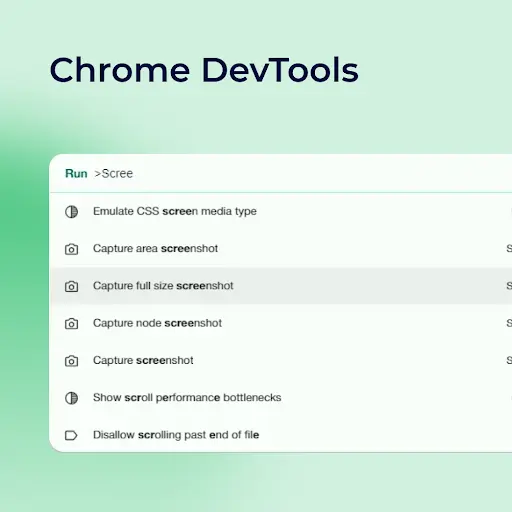
Chrome DevTools
- Open the page you want to capture
- Press Cmd+Shift+P (Mac) or Ctrl+Shift+P (Windows)
- Type "Capture full size screenshot" and hit Enter
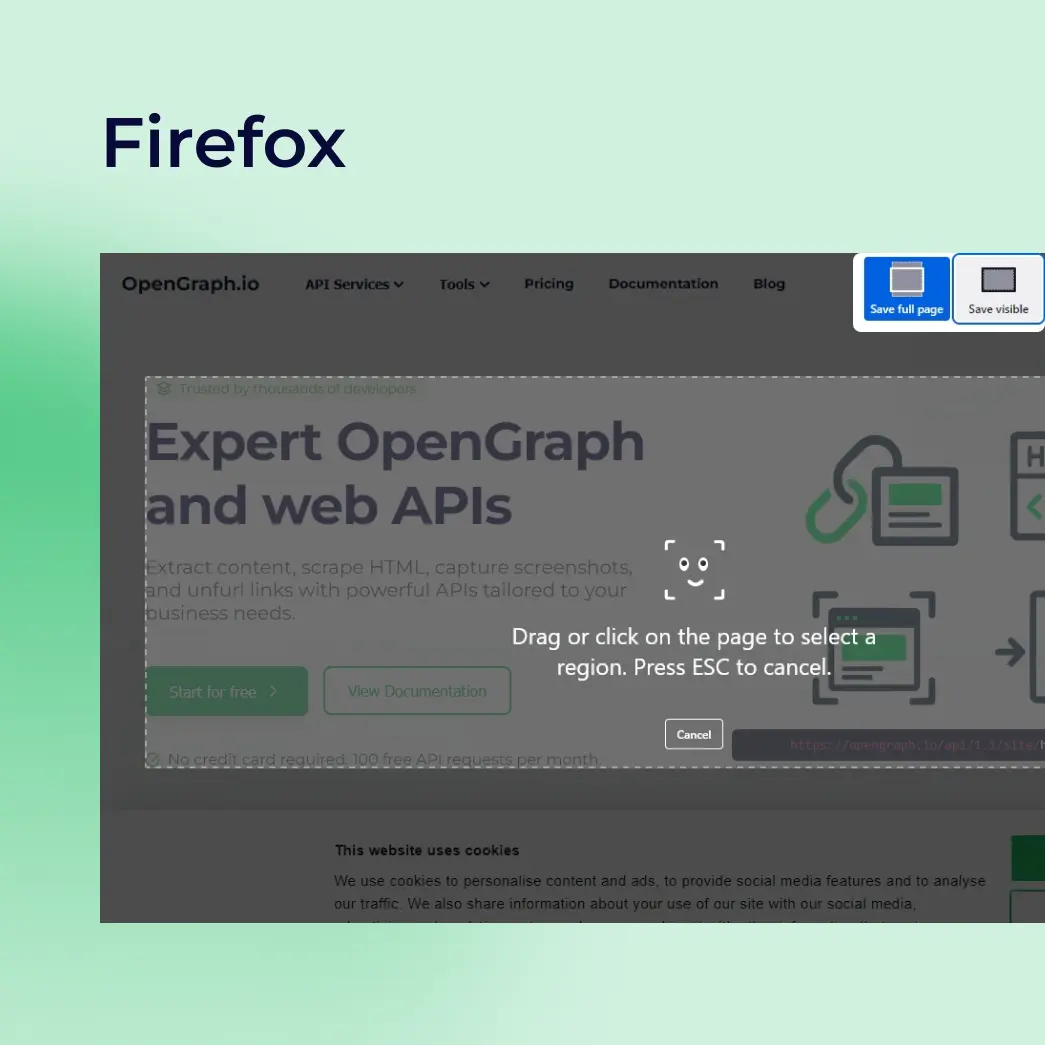
Firefox
- Right-click anywhere on the page
- Select Take Screenshot
- Choose Save full page
Safari
- Open Developer Tools
- Export the page as PDF, then convert to PNG
✅ Pros: Built-in, no download needed
❌ Cons: No automation, no metadata, no batching
2. Chrome Extensions (One-Click Tools)
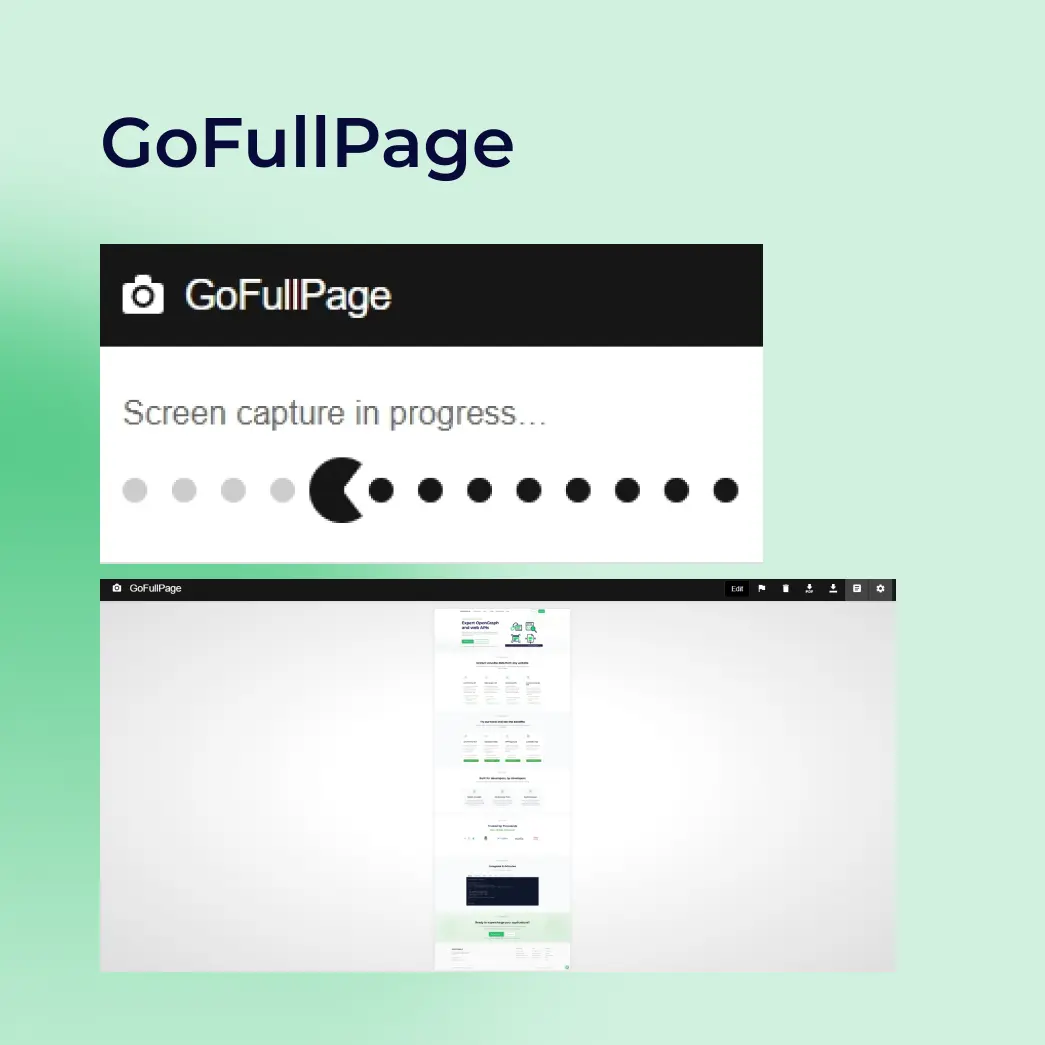
GoFullPage
GoFullPage is a Chrome extension with 9M+ users. It scrolls and stitches the entire page automatically.
Awesome Screenshot
Supports annotations, blur tools, sharing to cloud. Ideal for product teams or designers.
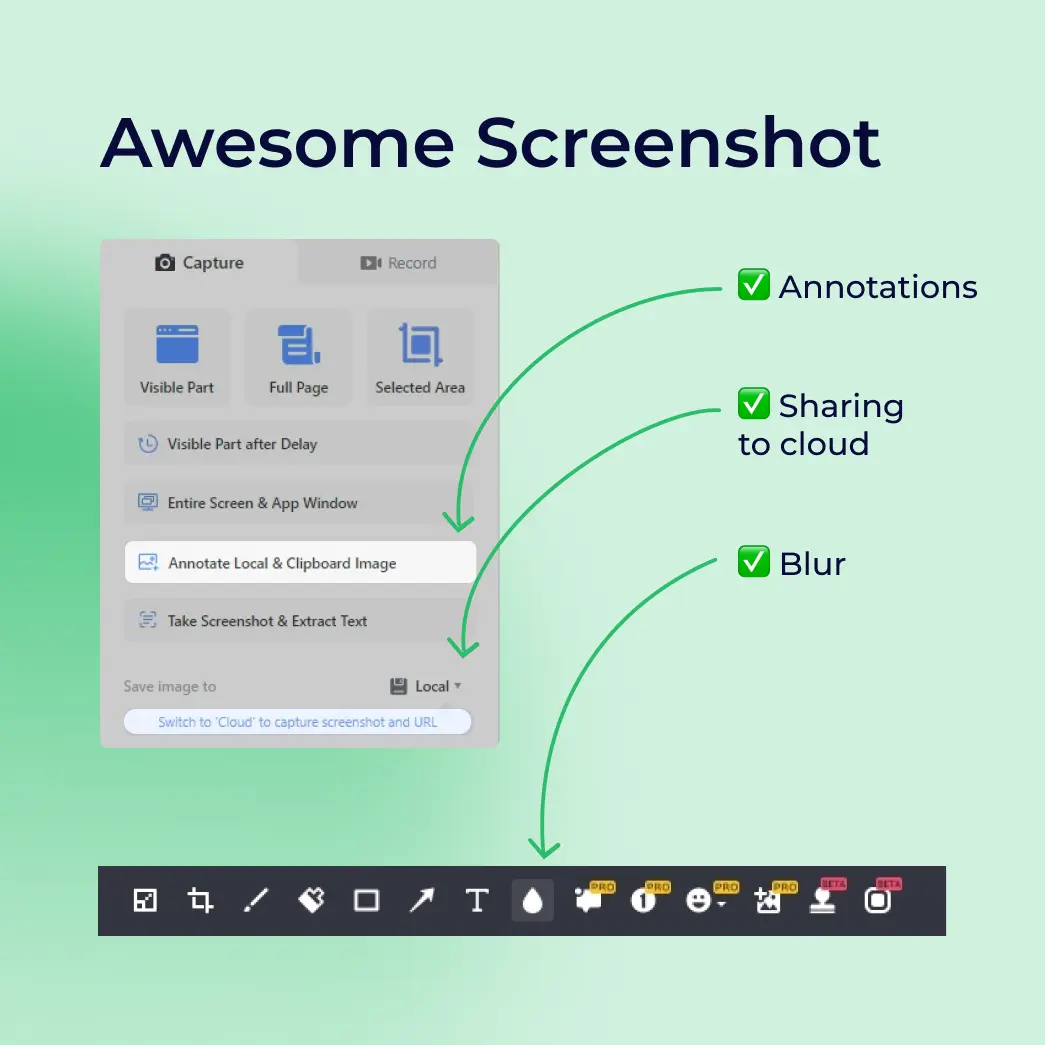
Comparison Table
| Feature | GoFullPage | Awesome Screenshot |
|---|---|---|
| Price | Free | Free + Premium |
| Annotations | Basic | Advanced |
| Cloud Storage | No | Yes |
| Blur Tools | No | Yes |
| Sharing | Download only | Multiple options |
✅ Pros: Easy to use, no code needed
❌ Cons: Limited automation, browser-dependent
3. Code-Based Tools (Automation & Testing)
Puppeteer
const puppeteer = require('puppeteer');
(async () => {
  const browser = await puppeteer.launch();
  const page = await browser.newPage();
  await page.goto('https://example.com');
  await page.screenshot({ path: 'page.png', fullPage: true });
  await browser.close();
})();
Playwright
const { chromium } = require('playwright');
(async () => {
  const browser = await chromium.launch();
  const page = await browser.newPage();
  await page.goto('https://example.com');
  await page.screenshot({ path: 'page.png', fullPage: true });
  await browser.close();
})();
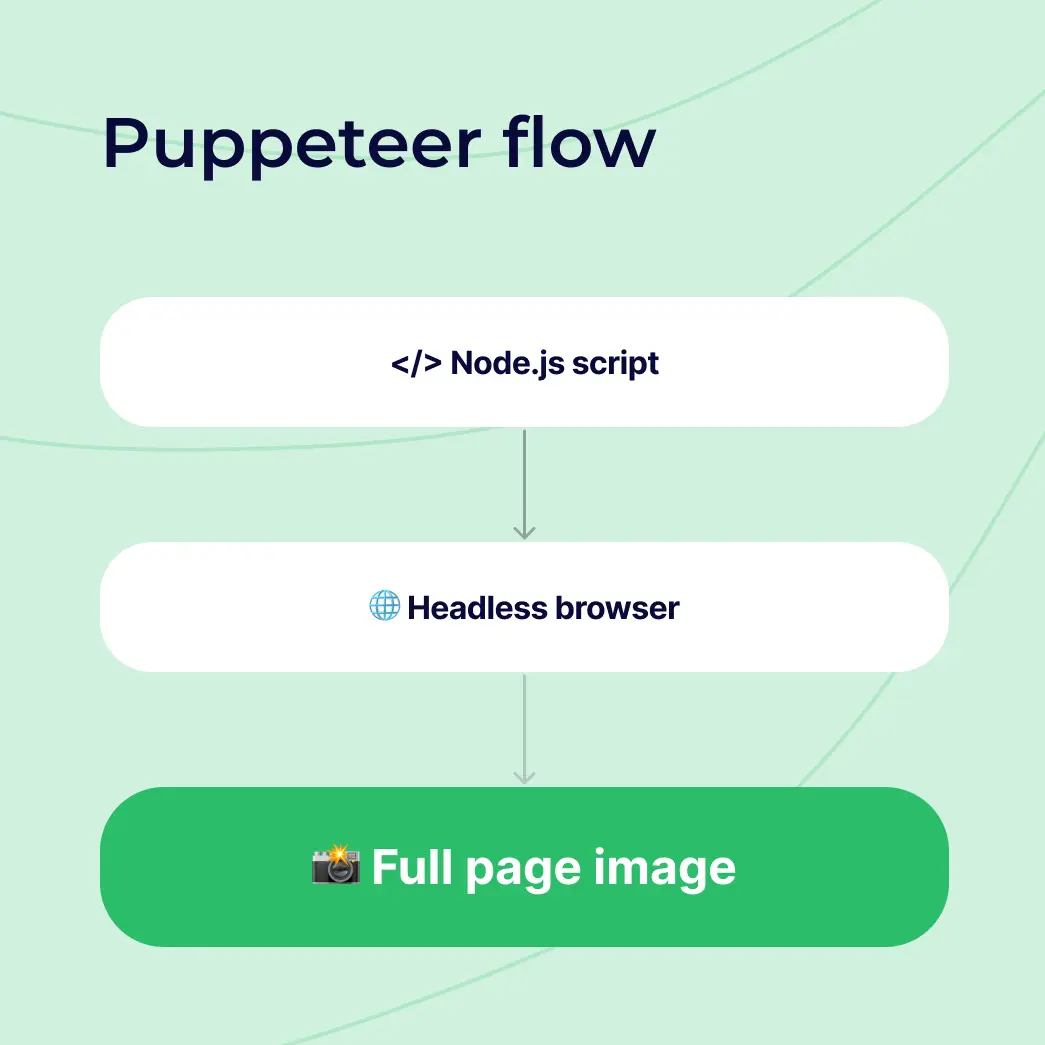
✅ Pros: Precise control, works on JS-heavy pages
❌ Cons: Requires setup, can't be used by non-devs
4. Screenshot APIs (Scalable & Metadata-Rich)
OpenGraph.io Screenshot API
Want to automate full-page screenshots AND get metadata like title, description, and OG image? Use OpenGraph.io:
Features:
- Full-page screenshot rendering
- OG metadata in the same call
- No queues, no browser setup
- REST API with JSON output
🧩 Example:
curl "https://opengraph.io/api/1.1/screenshot/https%3A%2F%2Fexample.com?app_id=YOUR_APP_ID"
🧪 Sample Output:
{
  "openGraph": {
    "title": "Example Domain",
    "description": "This domain is for use in illustrative examples.",
    "image": "https://cdn.opengraph.io/image/url/https%3A%2F%2Fexample.com.jpg"
  },
  "screenshot": "https://cdn.opengraph.io/screenshot/https%3A%2F%2Fexample.com.jpg"
}
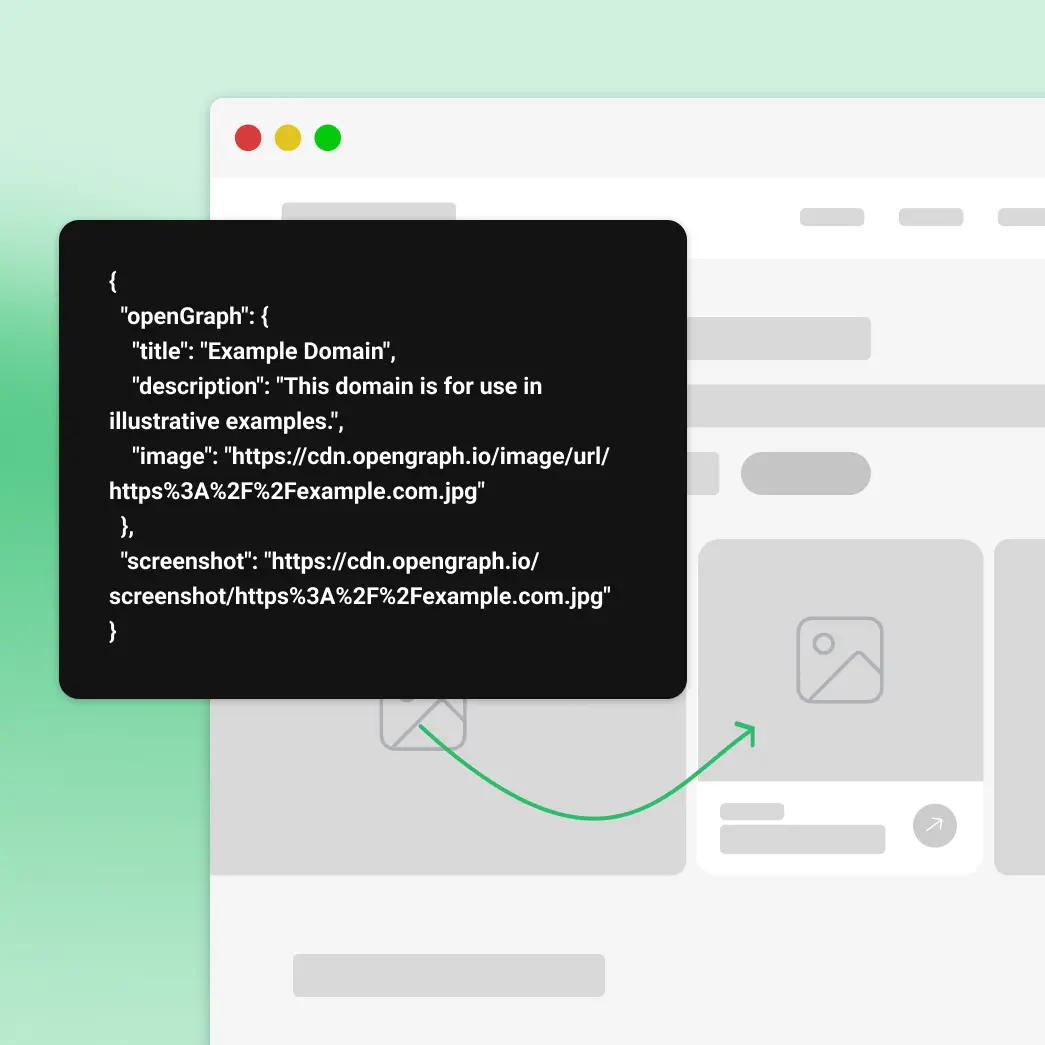
✅ Pros: Works at scale, great for previews, SEO, link sharing
❌ Cons: No PDF export or device emulation yet
Best For:
- Slack preview links
- Content audits
- Programmatic reports
- Browserless deployments
Comparison: Manual vs Extension vs API
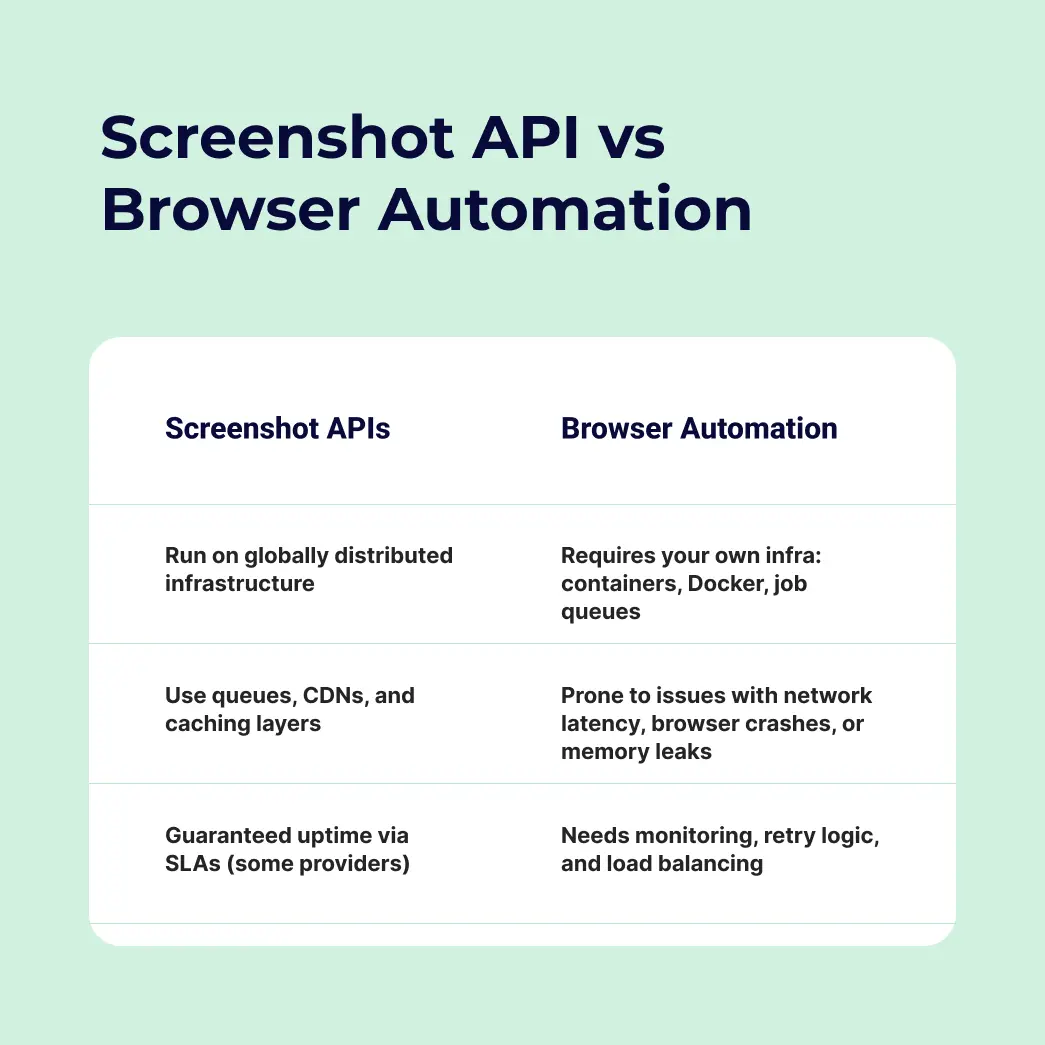
| Method | Setup Time | Automation | Features | Best For |
|---|---|---|---|---|
| Chrome DevTools | None | No | Basic | Quick captures |
| Extensions | 2 min | Limited | Medium | Regular use |
| Puppeteer | 30+ min | Full | Advanced | Testing |
| Screenshot API | 5 min | Full | Complete | Production |
Final Take
- Use Chrome DevTools for quick and easy manual screenshots
- Use GoFullPage if you want something simpler than code
- Use Puppeteer if you need to render JS and automate flows
- Use OpenGraph.io Screenshot API if you want fast, automated full-page screenshots plus metadata — at scale
You can also try our free Screenshot Tool to capture a page right from your browser without writing any code.
Try the OpenGraph.io Screenshot API Now
curl "https://opengraph.io/api/1.1/screenshot/https%3A%2F%2Fexample.com?app_id=YOUR_APP_ID"
Sign Up for Free or browse the full API docs to get started.